|
Welcome to redesigned Remote Access page. We will appreciate your
feedback about new step-by-step design. For those who prefer the old
familiar page, it is still available here.
Steps for Remote Access
2. Check your hardware and network compatibility
|
3. Submit us request for remote access with your IP address
- When scheduling your beamtime, submit to Sheila Trznadel (strznadel@anl.gov) your request to run remote for approval.
- Note that remote access can be allowed from a requested pool of IP addresses only and only for the time of experiment.
- If you are behind a proxy or firewall, your IP address presented to us may differ from what you see locally.
- Run Check IP Address tool to check your IP and email the requested pool of IP addresses to your host.
- Provide host with a phone number where you can be reached during remote experiment.
|
4. Fill and submit automounter templates
|
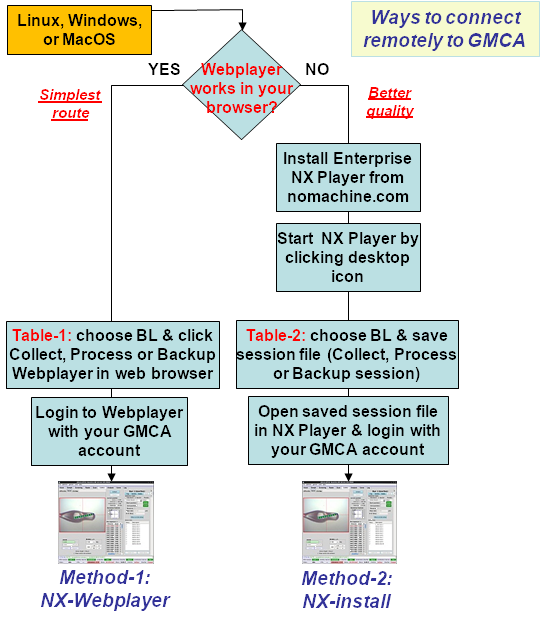
5. Have NX client or TeamViewer installed
|
 |
6. Check your credentials on the day of experiment
- You will receive remote login credentials (username and password) from your host over the phone at ~10am CST on the day of experiment.
- Beware that the Lab firewall treats multiple login failures as a hacking attack and blocks respective remote IP after 3 failures.
- Therefore
it is very important that you run Check Credentials tool before trying to login remotely.
- Contact your host to find out what might be wrong if the tool reports wrong credentials. See more details in FAQ.
|
 |
7. Run your remote experiment
- For Linux and Windows with automatic NX client installation via Java (see Step-5) proceed to Table-1.
- For all other NX installations proceed to Table-2.
- Connect with NX to blXws2 for data collection
- Connect with NX to blXws6 for data analysis
- Connect with NX to blXws5 for data backups
- For TeamViewer™, read TeamViewer™ FAQ and ask beamline host to start TeamViewer server for you.
- Remotely start MAR CCD software.
- Phone the beamlines if needed: +1(630)252-1823 for 23-IDD and +1(630)252-1723 for 23-IDB. The office phones of GMCA hosts are listed on the staff page.
- You can also use Skype to communicate with the beamline or an on-site part of your team.
- Also, Google Talk is available on blXws3 for on-site visitors who have a Google account.
- Pidgin instant messanging client supporting most networks is availble on all computers.
|
8. Transfer data back to your institution
|
9. Logout once finished
- Check FAQ on how long you can use the remote workstations.
- Workstations blXws2 (data acquisition) and blXws6 (data processing) are available for the time of experiment only.
- Workstation blXws5 (data backup) is available for an extra day.
- Please be a good neighbor and logout from all workstations once your work is over.
|
TABLE 1
TABLE 2
1) Note-1:
Clicking these links initiates installing free NX™ client on your computer.
The administrative access is not required, but the installation needs
Java Runtime Environment (JRE)
and a Java-enabled web browser. If you do not have these prerequisites, you can
still download and install a free standalone NX™ client from
NOMACHINE™
downloads. Then, use preconfigured NX™ sessions listed in Table-2
down this page to connect to the GM/CA @ APS beamlines. Right-click on the session
link in Table-2 to download the session file and then execute the
command "nxclient --session name.nxs". On some systems, e.g. Microsoft
Windows, this command can be launched by double-clicking on the session file.
2) Note-2:
This does not work for the latest Lion versions of Mac OS. See respective FAQ
below for possible workarounds if you have Lion.
3) Note-3:
Gnome and KDE are two popular and functionally equivalent types of Linux
desktops that we use on our beamline computers. At present Gnome has been
used more frequently and hence it is a better tested and recommended option.
Use KDE only when you have problem connecting to Gnome desktop. Some known
cases are NX™ clients on certain versions of MacOS or when users need
to login locally and remotely on the same computer at the same time.
4) Note-4:
These "Desktopless" sessions respectively launch Linux console (xterm)
or JBluIce only. Using them instead of Gnome and KDE desktops may help to lower
network traffic. As so, they may be more efficient in case of very slow connection.
However, generally these multi-window sessions are NOT
recommended because they cannot be shadowed. It means, your host will
have very limited capacity to help you (he will not be able to see your desktop)
and the session cannot be shared with a collaborator. Consider them as a last resort
for very experienced user with very slow connection. When starting Linux console,
type "bluice" in the console window to launch JBluIce. In both cases the
controls for MARCCD are available via the JBluIce Tools menu. When using the Linux
console session, MARCCD controls can also be started by typing "marccdepics".
5) Note-5:
Shadow sessions provide additional connections to an already running Gnome or
KDE sessions for collective viewing. They are mostly meant for the GM/CA @ APS
staff when there is a need to help users remotely. Shadow sessions are not
recommended for users since streaming multiple remote desktops may result is
a degraded performance.
|