Dose Planner
Quick Start
- Back to launcher overview
- See screenshot and diagram ideas
- Open the tool with
qp2/bin/dose_planner. - Review the loaded beamline defaults.
- Adjust flux, resolution, crystal size, energy, attenuation, exposure, and image-count settings.
- Click
Pull Strategy Resultsif you want to import the latest strategy-derived parameters. - Enable
RADDOSE-3Dwhen you want the extended dose model. - Click
Find Best Parametersto search for recommended settings. - Select a result row and use
Export Selected StrategyorExport Current Strategy.
Overview
dose_planner is QP2’s dose and exposure planning GUI. The launcher script qp2/bin/dose_planner prepares the QP2 environment, loads CCP4, and then starts qp2.radiation_decay.dose_planner.
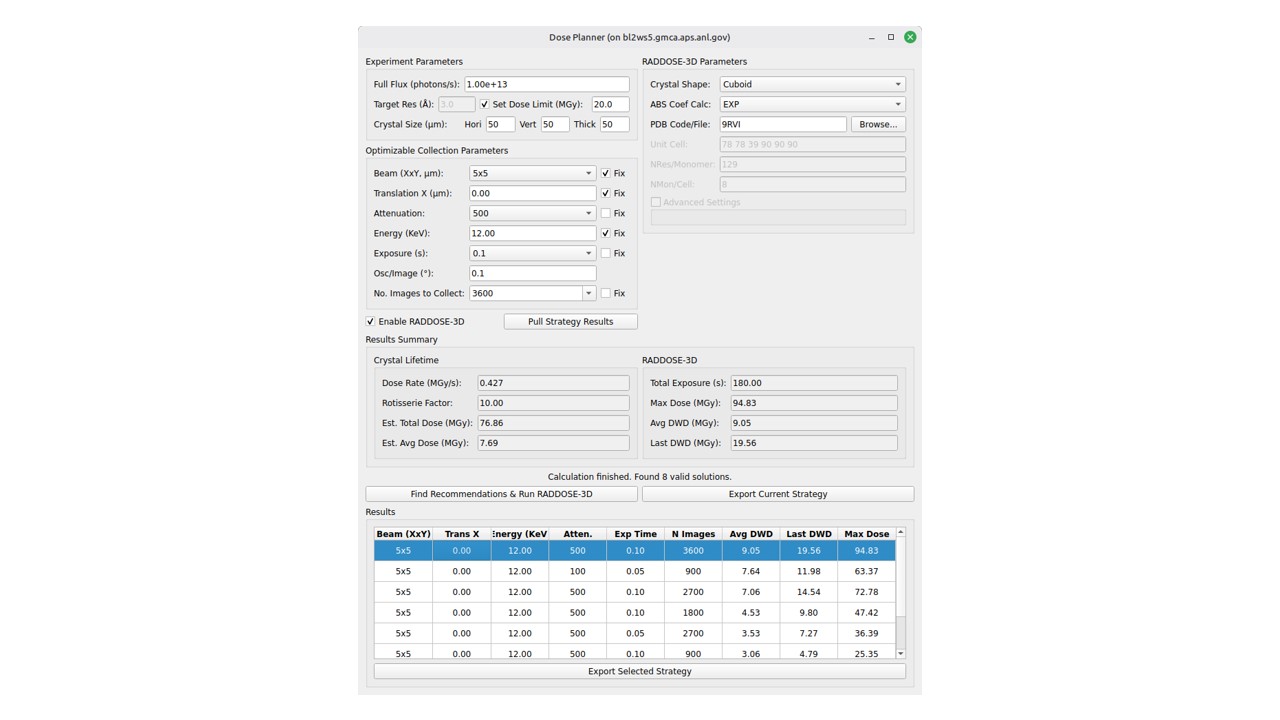
dose_planner main window: experiment inputs, optimization controls, and results in one workspace.Use it when you want to:
- estimate dose rate and total dose
- optimize collection parameters within practical beamline limits
- include RADDOSE-3D calculations
- import strategy-derived hints from external data
- export a selected collection strategy
Main Layout
The window is organized into four broad areas:
- experiment parameters on the left
- optimizable collection parameters on the left
- optional RADDOSE-3D controls on the right
- summary and results sections below
Experiment Parameters
The Experiment Parameters group collects the baseline values for the calculation.
Main fields:
Full Flux (photons/s)Target Res (A)Set Dose Limit (MGy)Crystal Size (um)with horizontal, vertical, and thickness values
Use these fields for:
- defining the target experiment quality
- setting crystal dimensions
- capping dose when you want the optimization to respect a maximum
Behavior to expect:
- the target resolution can drive dose-limit logic
- changing crystal dimensions updates later calculations automatically
Optimizable Collection Parameters
The Optimizable Collection Parameters group defines the variables the planner may change.
Main controls:
Beam (XxY, um)with aFixcheckboxTranslation X (um)with aFixcheckboxAttenuationwith aFixcheckboxEnergy (KeV)with aFixcheckboxExposure (s)with aFixcheckboxOsc/Image (deg)No. Images to Collectwith aFixcheckbox
How to use this section:
- check
Fixfor any parameter that must remain unchanged - leave a parameter unfixed if the planner is allowed to optimize it
- use
Translation Xfor helical-style motion along the crystal
Useful behavior:
- changing energy updates the flux estimate from the beamline data source
- changing oscillation updates the common image-count suggestions
Strategy Import
Pull Strategy Results
Use this when:
- you want to import the latest strategy result as a starting point
What it does:
- queries the external strategy source
- compares current values against the latest strategy values
- asks for confirmation before applying changes
Typical imported values include:
- unit cell
- residues per monomer
- monomers per cell
- oscillation delta
- stored strategy metadata used later for export
RADDOSE-3D Controls
Enable RADDOSE-3D
Use this when:
- you want the more detailed 3D dose model rather than only the simpler lifetime estimate
What happens:
- the right-side RADDOSE-3D panel becomes visible
- the RADDOSE-3D summary section is enabled
RADDOSE-3D Parameters
Main fields:
Crystal ShapeABS Coef CalcPDB Code/FileUnit CellNRes/MonomerNMon/Cell
Use these for:
- describing the crystal model for the RADDOSE-3D run
- driving absorption and dose calculations with either model-based or manually described inputs
Advanced RADDOSE-3D Settings
The Advanced Settings group is collapsible.
It includes:
AngleLAngleP- heavy atoms per monomer
- solvent atom concentration
- counts for DNA, RNA, and carbohydrate content
Use these when:
- your crystal chemistry or mount geometry needs a more realistic dose model
Results Summary
Crystal Lifetime
This summary group shows:
Dose Rate (MGy/s)Rotisserie FactorEst. Total Dose (MGy)Est. Avg Dose (MGy)
Use it for:
- quickly judging whether the current settings are reasonable before running a full optimization
RADDOSE-3D
When enabled, this summary group shows:
Total Exposure (s)Max Dose (MGy)Avg DWD (MGy)Last DWD (MGy)
Use it for:
- comparing detailed dose-model outcomes across candidate parameter sets
Main Actions
Find Best Parameters
Use this when:
- you want QP2 to search the allowed parameter combinations and recommend better settings
What to expect:
- the status line updates while calculations run
- batches of calculations may be dispatched in the background
- the results table is populated with candidate strategies
Export Current Strategy
Use this when:
- the current values in the form already represent the settings you want to export
Cancel
Use this to stop an in-progress optimization run.
Export Selected Strategy
Use this after selecting a row in the results table.
Behavior:
- the button stays disabled until you select a result row
Results Table
The Results group contains a sortable table of candidate strategies.
Typical use:
- run
Find Best Parameters - sort or scan the candidate rows
- select the row you want
- export the selected strategy
What to expect:
- selecting a row updates the current active recommendation
- the results table is meant for comparison of candidate parameter sets, not just a passive log
Typical Workflows
Quick planning pass
- open
dose_planner - review beamline defaults
- set target resolution and crystal dimensions
- keep most parameters fixed at first
- run
Find Best Parameters - inspect the summary and result rows
Import strategy then refine dose
- open
dose_planner - click
Pull Strategy Results - confirm the imported updates
- enable
RADDOSE-3Dif needed - rerun
Find Best Parameters - export the preferred strategy
Detailed RADDOSE-3D run
- enable
RADDOSE-3D - provide model, unit cell, composition, and advanced settings
- review the RADDOSE-3D summary values
- run the optimization
- export the selected strategy
Installation and Runtime Notes
The launcher script loads CCP4 before starting the GUI.
Practical implications:
- the tool expects more than just a pure Python environment
- RADDOSE-3D and related beamline helpers may depend on facility-specific runtime tools
Caveats
- The first values you see come from beamline defaults, so confirm them before trusting the result.
Pull Strategy Resultsis manual; it does not continuously auto-apply updates.RADDOSE-3Dadds complexity and may require more complete crystallographic input.- Export actions are only useful once you have either a valid current form state or a selected result row.