Data Viewer (dv)
Quick Start
Open the dashboard with
qp2/bin/dv.Use
Datasetsto browse raw acquisitions and submit them withright-click -> Process Selected Datasets....Use
Processingto rerun a job withright-click -> Re-process Selected....Use
Processingto review reports, open folders, and mark rows.Use
Strategyto review strategy results and export collection strategy when the export action is present.For one dataset, reprocess from
Processing; for several raw datasets, process fromDatasets; for several old jobs, reprocess fromProcessingwith multi-selection.
Overview
dv is the table-based viewer for datasets and for processing job status and results. Use the Datasets tab to inspect collected datasets, and the Processing and Strategy tabs to review processing state and results. The launcher script qp2/bin/dv starts qp2.data_viewer.main.
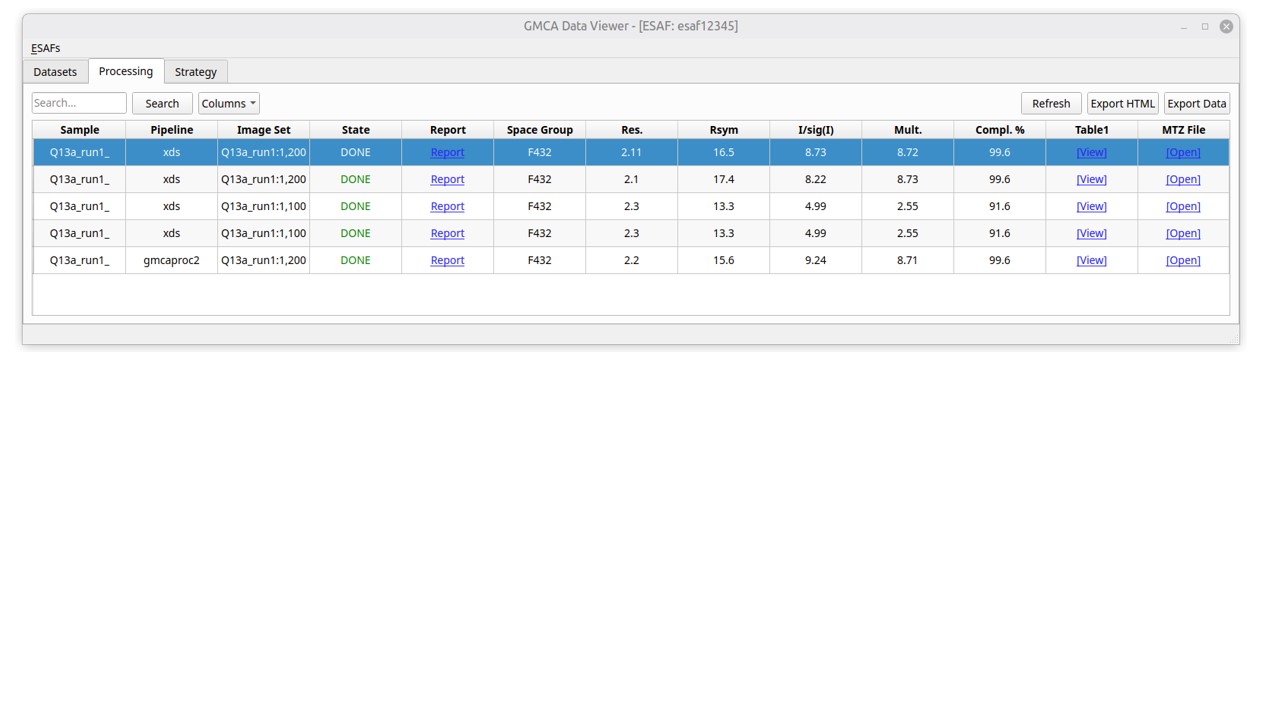
dv main window: datasets, processing results, and strategy review.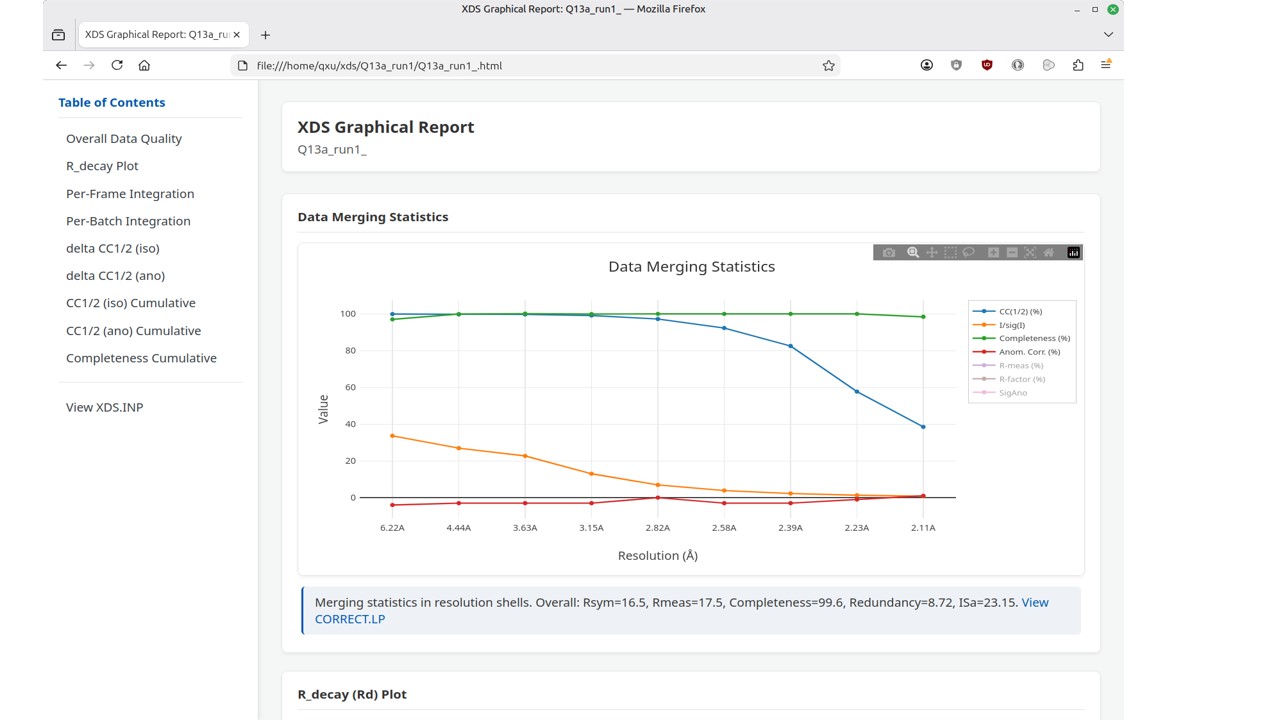
Processing tab.The application organizes information into three tabs:
DatasetsProcessingStrategy
It also scopes visible content to the current user and active group or ESAF. The top menu lets you switch primary group when you have access to multiple groups.
ESAFs and Group Scope
The top menu is ESAFs.
Typical use:
- switch the primary group when you belong to more than one ESAF or working group
- refresh the visible dataset and processing tables under that group
Important note:
- staff users can also use
Enter ESAF...for manual entry - non-staff users only see the groups QP2 can determine for them
Tab Reference
Datasets
Purpose:
- browse collected datasets before or independent of processing
- inspect metadata and source paths
- launch processing jobs from selected raw datasets
Typical visible columns:
UserRun PrefixFramesCollection TypeMetadataCreated
Hidden or supporting fields may include:
Masterfiles- spreadsheet metadata
- mounted state
Use this tab when:
- you want to inspect raw acquisitions
- you want to open images or the containing folder
- you want to submit one or more datasets for processing
Processing
Purpose:
- review non-strategy processing jobs and results
- open reports, output files, and working directories
- reprocess existing jobs
Typical visible columns:
SamplePipelineImage SetStateReportSpace GroupRes.RsymI/sig(I)Mult.Compl. %Table1MTZ File
Hidden or supporting fields may include:
Log FileImage DirWork DirRun StatsReprocess IDSolve
Use this tab when:
- you want to check whether processing succeeded
- you want to inspect reports and MTZ outputs
- you want to rerun one or more jobs from existing entries
Strategy
Purpose:
- review strategy or screening outputs
- inspect angle range, score, and related planning information
- export strategy values for downstream collection use
Typical visible columns:
SamplePipelineImage SetStateExp. StrategySpace GroupRes.ScoreStart (deg)End (deg)ASU (a.a.)
Hidden or supporting fields may include:
CellLatticeIndex TableXPlan LogPoint Group ChoicesReference Data
Use this tab when:
- you want to inspect strategy results
- you want to export a strategy when the row contains the required values
- you want to compare strategy outcomes across runs
Important note:
- this tab does not expose the same
Re-process Selected...action found inProcessing
How To Reprocess One Dataset
Use this when you already have a processing entry and want to run it again.
Steps:
- Open
dv. - Go to
Processing. - Select exactly one row.
- Right-click and choose
Re-process Selected.... - Wait for QP2 to recover the original master file and open the processing dialog.
- Review the dataset list, output root, and selected pipeline.
- Adjust any job parameters.
- Click
Submit Jobs to Cluster.
What QP2 does behind the scenes:
- first it looks for stored dataset paths in the processing record
- if needed, it falls back to run statistics
- if needed, it attempts to reconstruct the master-file path from image-directory information
What to expect:
- if the original source file still exists and can be determined, the dialog opens normally
- if not, QP2 warns that it cannot determine or find the original master file
How To Reprocess Multiple Datasets
There are two common multi-dataset cases.
Reprocess multiple old jobs from Processing
Use this when:
- you already have several processing entries and want to rerun them together
Steps:
- Open
dv. - Go to
Processing. - Multi-select the rows you want.
- Right-click and choose
Re-process Selected.... - Wait for QP2 to recover the source master files from each selected row.
- Review the combined dataset list in the processing dialog.
- Decide whether to merge or submit separate jobs based on the pipeline.
- Submit.
What to expect:
- QP2 combines all recoverable master files into one launcher dialog
- only datasets whose source files can still be found will make it into the final job list
Process multiple raw datasets from Datasets
Use this when:
- you want to submit jobs directly from newly collected data, not from existing processing rows
Steps:
- Open
dv. - Go to
Datasets. - Multi-select the dataset rows you want.
- Right-click and choose
Process Selected Datasets.... - Review the dataset list in the processing dialog.
- Choose the pipeline.
- Enable merge mode if appropriate.
- Submit.
What to expect:
- QP2 gathers the
master_fileslist from each selected dataset row - this is the fastest path from raw acquisition rows to new processing jobs
Opening Data and Results from dv
Open images in iv
Use View Images when you want the QP2 viewer rather than the table display.
Open a single row in ADXV
Use ADXV when you want a quick external image inspection path.
Reminder:
- this only works when exactly one row is selected
Open folders and terminals
Use Open Image Folder or Open Terminal Here when you need to inspect files directly on disk.
Strategy Export
The Strategy tab uses the Exp. Strategy column for export.
What to expect:
- the export link appears only when the row contains a valid record id and a non-empty
osc_startvalue - not every strategy row will display an export action
Use this when:
- you want to take a strategy result and turn it into a downstream run or collection configuration
Refresh and Monitoring Behavior
dv is not just a static table viewer.
Behavior to expect:
- the active
ProcessingorStrategytab can refresh as pipeline state changes are detected - the
Datasetstab can refresh when new datasets appear - switching the primary group refreshes the visible data set for all tabs
Practical effect:
- you may see rows update while monitoring jobs
- a job that was previously running may change state without manual reload
Caveats
- Most actions require one or more selected rows.
ADXVis single-selection only.- Reprocessing depends on QP2 being able to recover the original master-file path.
- Reprocessing can fail if the original dataset was moved or deleted.
- The visible data is filtered by the current user and active group or ESAF.
- Staff users have an extra
Enter ESAF...menu item that normal users may not see. Strategyis mainly a review and export tab; it does not expose the same reprocess action asProcessing.