Image Viewer (iv)
Quick Start
- Back to launcher overview
- See screenshot and diagram ideas
- Open the viewer with
qp2/bin/iv. - Load data from
File -> Open Master File(s)...,File -> Open Directories..., orFile -> Load from List File.... - Reprocess or launch new jobs from the dataset tree: select a sample, run, or dataset -> right-click ->
Standard ProcessingorSerial Processing. - Make a heat map from one raster run: dataset tree -> right-click ->
Show 2D Grid Heatmap.... - Make a 3D volume from two orthogonal raster runs: dataset tree -> right-click ->
Construct 3D Volume.... - Switch analysis modes from the plugin selector in the lower analysis pane.
- Use
Processing Job Statusfrom the dataset context menu or top controls to check job state and rerun failures.
Overview
iv is the main diffraction image viewer in QP2. It combines frame-by-frame inspection, dataset browsing, live-mode monitoring, plugin-based analysis, and direct processing launch.
The launcher script is qp2/bin/iv. It prepares the environment and then starts qp2.image_viewer.ui.main. If the current user is not in one of the authorized live-mode groups, the launcher automatically adds --nolive, so the viewer opens in review mode.
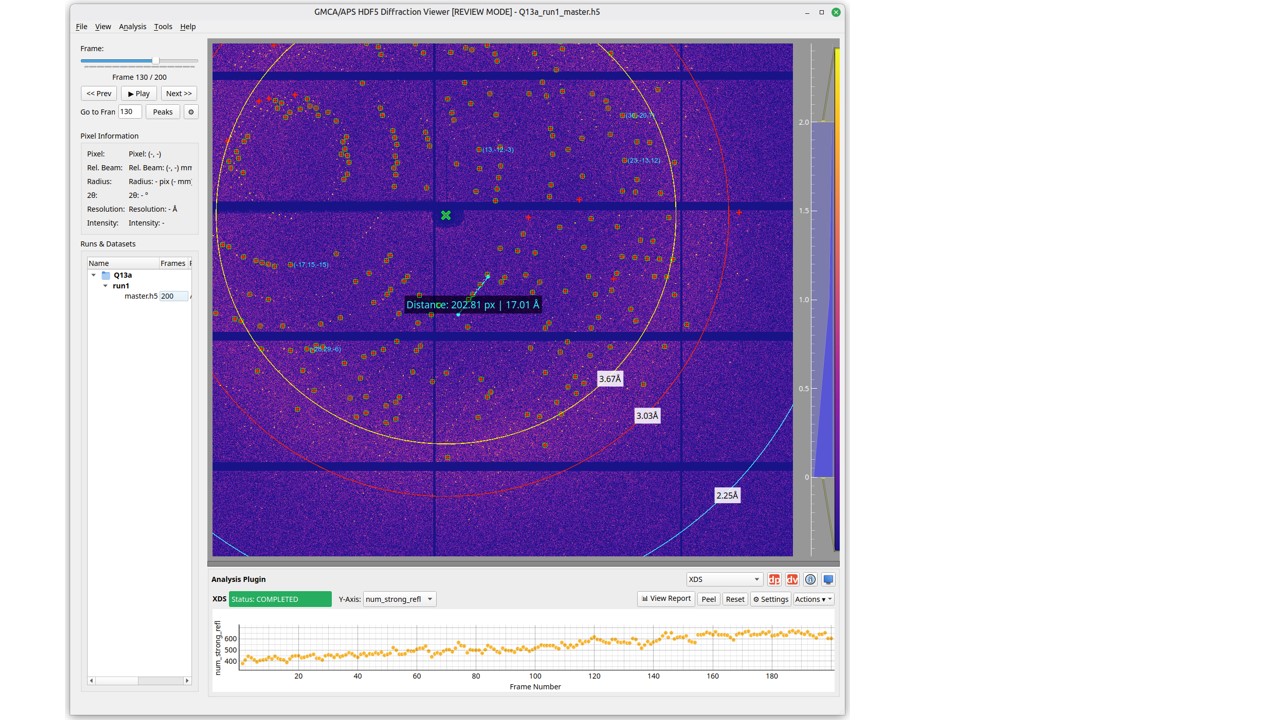
iv main window: dataset tree on the left, diffraction image in the center, and the analysis/plugin area below.Live Mode vs Review Mode
Live mode
Use live mode when:
- you want the viewer to follow detector Redis updates
- you want newly arriving data to appear automatically
- you want plugins to respond while data is still being collected
What to expect:
- the window title includes
[LIVE MODE] File -> Follow detector redischanges toUnfollow detector rediswhile following- some plugins can auto-submit or auto-refresh as a dataset finishes collecting
Review mode
Use review mode when:
- you are opening existing files from disk
- you are not authorized for live mode
- Redis is unavailable or you do not want live following
What to expect:
- the window title includes
[REVIEW MODE] - you load data manually from files, directories, lists, or recent records
- processing is usually launched manually from the dataset tree or plugin area
Main Window Layout
The main visible areas are:
Viewer Controlsdock on the left- frame slider
- frame label
- previous, next, and play buttons
- frame input
- quick peak-finding controls
- pixel information readout
Runs & Datasetsdock on the left- tree of samples, runs, and datasets
- right-click context menu for processing, visualization, and utilities
- image display in the center
- diffraction image
- overlays for peaks, rings, reflections, masks, and measurements
- analysis pane at the bottom
- plugin selector
- plugin-specific controls and plots
- buttons for data processing, data viewer launch, and status access
- optional extra windows or docks
- Python Console
- AI Assistant
- detached plugin plot windows via
Peel
How To Process Data in iv
Reprocess or process one dataset
Data processing and reprocessing can both happen directly inside iv.
- Load the dataset into the tree.
- Select the dataset row.
- Right-click.
- Choose one of:
Standard Processing -> Run XDS...Standard Processing -> Run autoPROC...Standard Processing -> Run xia2...Standard Processing -> Process 1 Dataset...Serial Processing -> Run xia2.ssx...
- Review the settings dialog if one appears.
- Submit the job.
When to prefer the generic process dialog:
- you want to adjust more parameters before submission
- you want explicit control over output directories, merge mode, or advanced options
Plugin-driven processing note:
- if a processing plugin is selected in live mode and QP2 does not detect a previous run for that dataset, the plugin can auto-run without you manually launching the job from the context menu
- this is most relevant for plugins such as XDS, nXDS, CrystFEL, autoPROC, xia2, and xia2 SSX
Process several datasets
- Select multiple dataset rows, or select a run or sample to include many datasets at once.
- Right-click the selection.
- Choose a standard or serial processing path.
- For merge-capable workflows, decide whether you want one merged job or one job per dataset.
- Submit the job.
Typical use:
- merged rotation processing with
xia2orautoPROC - one-job-per-dataset XDS processing plus follow-up merge
- batch serial processing with
xia2.ssxorCrystFEL
Rerun failed jobs
- Open the dataset context menu.
- Choose
Display Processing Job Status.... - Filter to the relevant plugin if needed.
- Review failed jobs.
- Use the resubmit workflow from the status dialog.
Run strategy calculations
- Select the dataset or datasets.
- Right-click.
- Open
Standard Processing -> Run Strategy. - Choose
XDS,MOSFLM, orBoth.
Run serial processing
- Select one or more serial datasets.
- Right-click.
- Open
Serial Processing. - Choose the serial engine or batch mode.
- Submit.
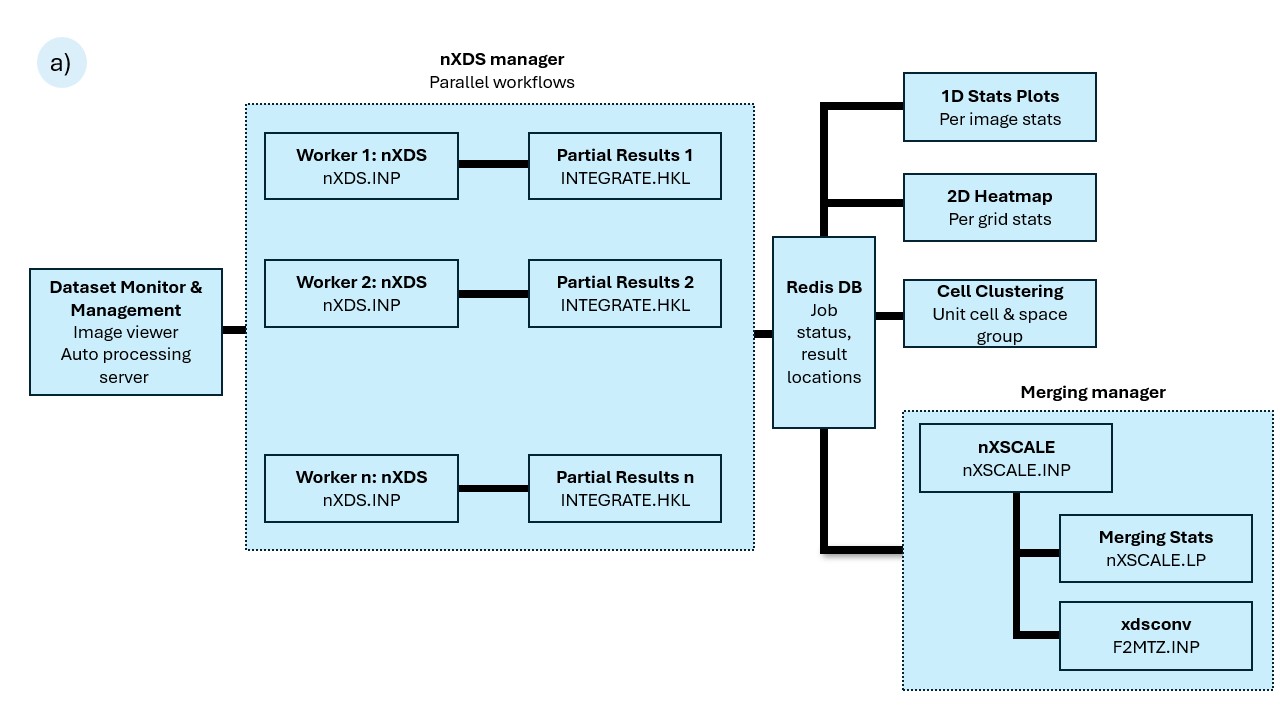
Analysis and processing figures


iv processing and analysis workflow.Analysis Plugins
iv can switch between analysis plugins in the lower analysis pane.
Two practical questions matter most for users:
- what settings belong to the plugin itself, and what settings come from global
ivsettings - what the plugin does automatically in live mode versus what stays manual in review mode
Which plugin should I choose?
- Choose
Live Spot Finderwhen you want the fastest frame-by-frame hit finding and immediate feedback while browsing. - Choose
Dozorwhen you want frame-quality scoring and a quick ranking of useful images. - Choose
nXDSwhen you want serial indexing review and frame-by-frame indexed versus unindexed behavior. - Choose
Crystfelwhen you are reviewing CrystFEL serial indexing results or CrystFEL batch processing. - Choose
XDS,autoPROC, orxia2when you are reviewing standard rotation-dataset processing. - Choose
xia2 SSXwhen you are reviewing serial or batch SSX results rather than single-frame live behavior.
Plugin comparison
| Plugin | Best use | Inherits common iv processing settings? |
Auto-runs in live mode? | Review-mode behavior |
|---|---|---|---|---|
Live Spot Finder |
Fast peak finding and hit review | No, mainly uses viewer frame-analysis settings | Yes, reacts naturally to arriving frames | Manual inspection and result display |
Dozor |
Frame-quality scoring and ranking | Partial, especially resolution fallback | Yes, can auto-process incoming segments | Refresh and manual rerun |
nXDS |
Serial indexing review | Yes | Yes, after dataset completion, especially when no previous run is detected | Refresh existing results or rerun with Clear and Re-run |
Crystfel |
CrystFEL serial review | Yes, for some shared fields | Yes, after dataset completion, especially when no previous run is detected | Result viewing or rerun with Clear and Re-run |
XDS |
Standard rotation processing review | Yes | Yes, after dataset completion, especially when no previous run is detected | Result viewing or rerun with Clear and Re-run |
autoPROC |
Standard processing reports and downstream maps | Yes | Yes, after dataset completion, especially when no previous run is detected | Result viewing or rerun with Clear and Re-run |
xia2 |
Standard xia2 result review | Yes | Yes, after dataset completion, especially when no previous run is detected | Result viewing or rerun with Clear and Re-run |
xia2 SSX |
Serial SSX result review | Yes | Yes, after dataset completion, especially when no previous run is detected | Summary review or rerun with Clear and Re-run |
Available plugin names in the selector:
Live Spot FinderDozornXDSCrystfelXDSautoPROCxia2xia2 SSX
A DIALS SSX manager exists in code, but it is not currently exposed in the main selector.
Plugin settings and interaction with iv settings
Plugin settings are not isolated from the rest of iv. QP2 keeps them in the same shared settings store, but with plugin-specific names such as xds_*, nxds_*, dozor_*, xia2_*, autoproc_*, and crystfel_*.
What this means in practice:
- each processing plugin has its own settings dialog for plugin-specific options
iv -> File -> Settings...also exposes global processing defaults shared across plugins- if a plugin-specific field is left empty, many plugins fall back to the global common value
- if you intentionally override the common value inside the plugin dialog, the plugin uses its own value instead
Global iv settings that commonly affect plugins include:
- common space group
- common unit cell
- common model file
- common reference HKL
- common processing root
- common low and high resolution cutoffs
- common native or anomalous choice
Typical interaction pattern:
- set beamline-wide or experiment-wide defaults once in
ivsettings - open a plugin settings dialog only when that plugin needs an override
- expect plugin-specific settings to win when they are explicitly set
Examples:
- XDS, nXDS, xia2, xia2 SSX, autoPROC, and CrystFEL can all inherit some settings from the common processing section
- Dozor can also pick up common resolution limits when its own limits are left at defaults
- live spot finding uses its own peak-finding parameters rather than the processing-job parameter set
Common plugin behavior
Most plugins share these behaviors:
- they appear in the lower analysis pane
- they can update when the dataset changes
- they can emit status messages to the viewer status area
- plot-oriented plugins let you click a point and jump to the corresponding frame
- the
Peelbutton detaches the plot into its own floating window - the
Actionsmenu usually includes refresh and rerun-style commands
Common user-visible controls in plugin panels:
- status label
- y-axis or metric selector for plot-based plugins
PeelorDockResetActions
Live mode vs review mode behavior
This is the most important plugin behavior difference.
In live mode
What usually happens automatically:
ivcan auto-start playback when frames are arriving- per-frame or per-file plugins such as live spot finding and Dozor can auto-process available or incoming data segments
- per-dataset plugins such as XDS, nXDS, CrystFEL, autoPROC, xia2, and xia2 SSX can auto-run when the dataset-completion event is seen
- if the selected processing plugin does not detect a previous run for the dataset, it can auto-submit the first run for you in live mode
- most plugins continue auto-refreshing their plots or result displays on a timer
Practical meaning:
- live mode is the best choice when you want the selected plugin to react as data arrives
- some plugins begin useful work without you manually re-submitting the dataset once the right live events appear
- processing can start directly from the selected plugin, not only from the dataset-tree context menu
In review mode
What changes:
- plugins can still load and display existing results
- plugins can still refresh plots and status displays
- plugins generally do not auto-submit new processing jobs for an already loaded, completed dataset
- reruns are expected to be manual
Practical meaning:
- review mode is for inspecting data and results you already have
- if you want to reprocess, use the plugin’s rerun action or the dataset-tree processing actions
- the most direct plugin-driven reprocessing path is usually
Actions -> Clear and Re-run
Refresh vs rerun
These are different actions and users often confuse them.
Refresh means:
- re-read current results from Redis or files
- redraw the plot or update the displayed status
- do not submit a new processing job
Clear and Re-run means:
- clear stored plugin result state
- submit analysis or processing again
- use this when you really want a fresh rerun, not just a visual update
- in review mode, this is the main plugin action for triggering reprocessing from the analysis pane
Live Spot Finder
Settings behavior:
- uses the viewer’s peak-finding settings rather than the common processing-job parameter set
- responds to the current frame-analysis configuration in
iv
Typical behavior:
- shows spot counts or live peak-finding output by frame
- uses the current frame-analysis settings from the viewer
- clicking points moves the image view to the corresponding frame and shows peaks
- in live mode it is one of the most responsive plugins because it works naturally with arriving frames
- in review mode it is still useful for manual inspection, but it does not have the same live-arrival behavior
Use it for:
- fast hit finding and frame-by-frame peak review
Dozor
Settings behavior:
- has its own Dozor-specific settings dialog
- can inherit common resolution-cutoff values from
ivsettings when its own values are left at defaults
Typical behavior:
- shows Dozor-derived frame metrics
- batches incoming segments in live workflows
- clicking points can display Dozor spots on the image
- in live mode it can auto-process new incoming file segments
- in review mode it mainly refreshes and displays existing results unless you manually rerun
Use it for:
- ranking frames by diffraction quality
- reviewing dataset quality trends
nXDS
Settings behavior:
- has its own nXDS settings dialog
- can inherit common space group, unit cell, model, reference HKL, and processing-root values from
ivsettings when plugin-specific overrides are not set
Typical behavior:
- plot-oriented indexed versus unindexed display
- clicking points selects the frame and overlays spots or indexed reflections
- shows indexing-related cell or lattice information when available
- in live mode it can auto-run when a dataset-completion event is seen
- in review mode it usually waits for manual rerun or existing result refresh
Use it for:
- serial indexing review
- checking which frames indexed successfully
Crystfel
Settings behavior:
- has its own CrystFEL settings dialog with serial-processing and indexing controls
- can inherit model-file and processing-root values from the common
ivsettings when those plugin-specific values are not set
Typical behavior:
- plot-oriented indexed versus unindexed display
- clicking points shows spots and indexed reflection overlays when available
- exposes indexer and lattice information when results exist
- in live mode it can auto-run when the dataset completes and the live workflow is active
- in review mode it acts mainly as a result viewer unless you explicitly rerun
Use it for:
- CrystFEL result review after indexing or batch jobs
XDS
Settings behavior:
- has its own XDS settings dialog
- can inherit common space group, unit cell, model file, reference HKL, resolution limits, and processing-root values from
ivsettings when plugin overrides are not set
Typical behavior:
- focused on per-frame and dataset statistics rather than spot overlays
- includes a
View Reportaction when report files exist - clicking points jumps to a frame and shows statistics
- in live mode it can auto-run once a dataset is recognized as complete
- in review mode it mainly refreshes and displays existing results until you rerun manually
Use it for:
- reviewing standard rotation processing output
autoPROC
Settings behavior:
- has its own autoPROC settings dialog
- can inherit common space group, unit cell, model file, resolution limits, and processing-root values from
ivsettings when plugin overrides are left empty
Typical behavior:
- report-oriented, not plot-oriented
- hides the standard plot controls
- exposes report and summary actions when output files exist
- can offer a
Launch Cootaction when Dimple-style output is available - in live mode it can auto-run after dataset completion
- in review mode it behaves mainly as a result-review plugin unless you trigger a rerun
Use it for:
- reviewing finished autoPROC results and downstream maps
xia2
Settings behavior:
- has its own xia2 settings dialog
- can inherit common space group, unit cell, model file, resolution limits, and processing-root values from
ivsettings when plugin-specific overrides are not set
Typical behavior:
- report-oriented, not plot-oriented
- exposes HTML or text-summary output when available
- can offer
Launch Cootwhen downstream map files exist - in live mode it can auto-run after dataset completion
- in review mode it mainly displays prior results unless you rerun manually
Use it for:
- reviewing standard xia2 outputs
xia2 SSX
Settings behavior:
- has its own xia2 SSX settings dialog
- can inherit common space group, unit cell, model file, reference HKL, resolution limits, native/anomalous choice, and processing-root values from
ivsettings when plugin overrides are not set
Typical behavior:
- report-oriented serial-processing summary plugin
- exposes HTML or text-summary review
- focuses on batch and serial results instead of plot-based frame inspection
- in live mode it can auto-run after dataset completion when the live workflow is active
- in review mode it is mostly a summary and rerun surface rather than an auto-submitting plugin
Use it for:
- checking results from xia2 SSX runs
Heat Maps and 3D Volume Workflows


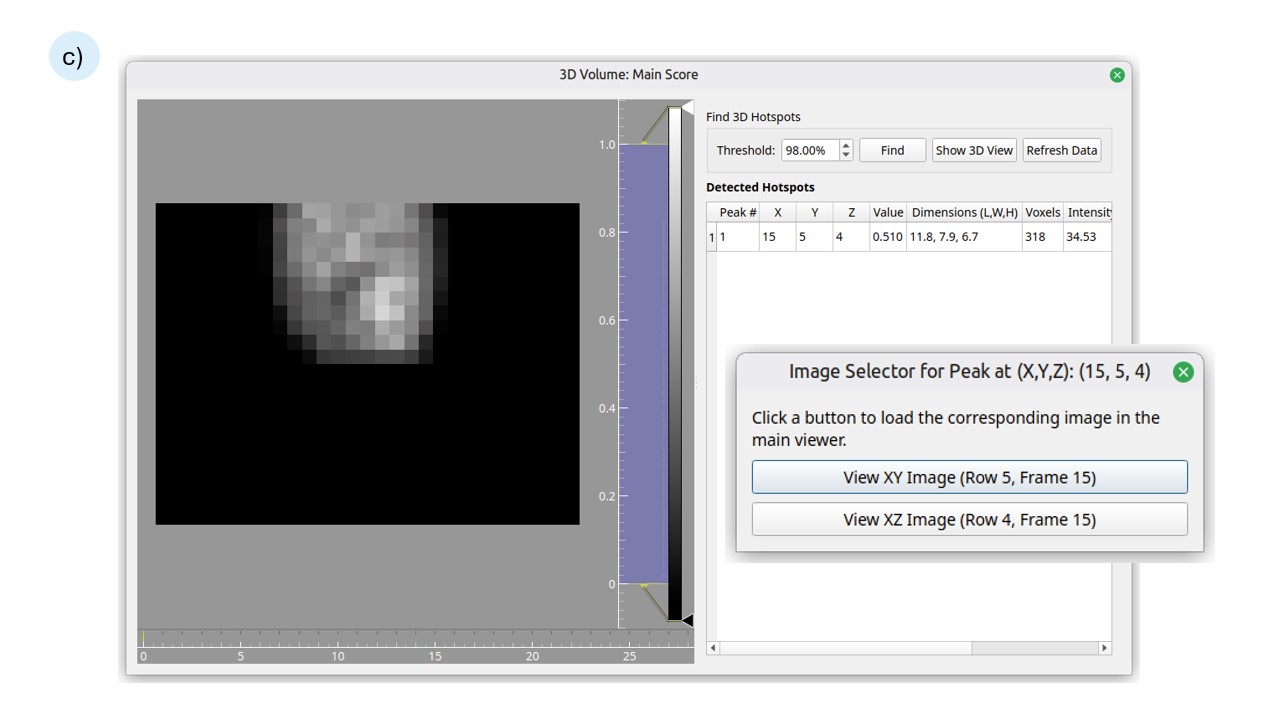

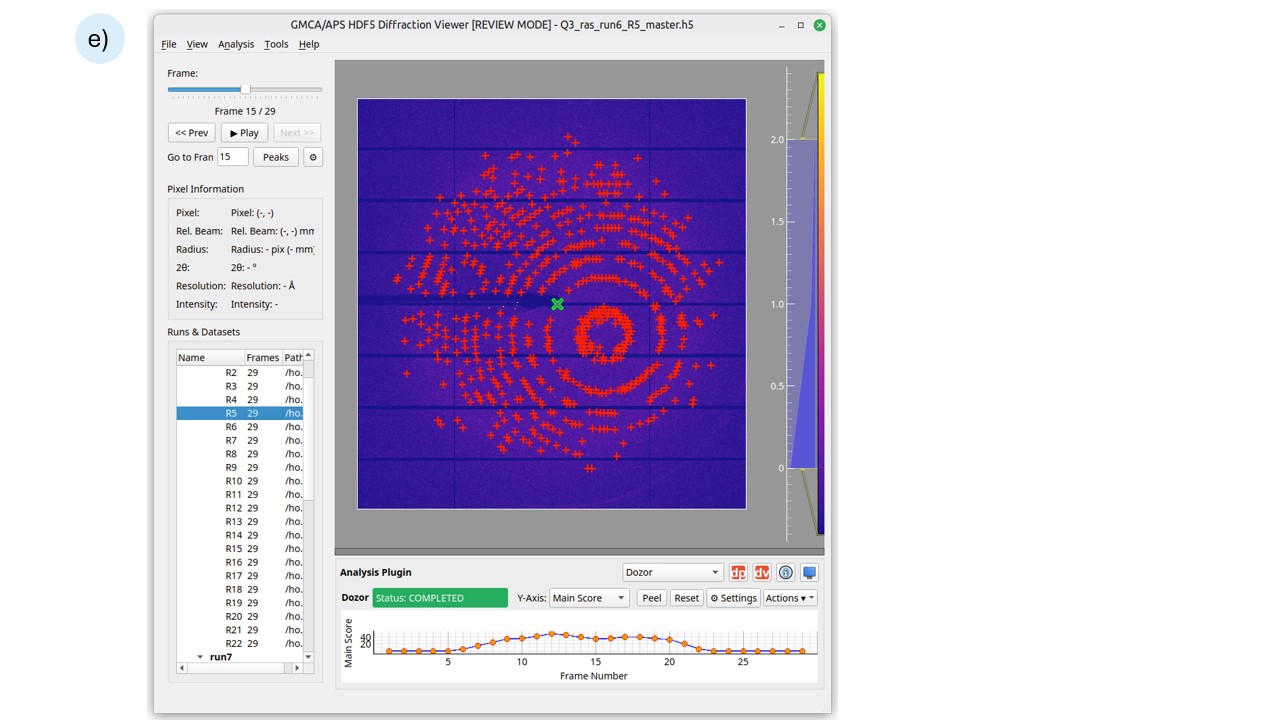

2D heat map
Requirements:
- one selected run that QP2 recognizes as raster-like
Typical steps:
- Select the raster run in the dataset tree.
- Right-click.
- Choose
Show 2D Grid Heatmap.... - Review the generated map and, if needed, change the active plugin to alter the underlying metric.
3D volume
Requirements:
- exactly two selected runs
- runs should represent roughly orthogonal raster scans
Typical steps:
- Select both raster runs.
- Right-click.
- Choose
Construct 3D Volume.... - Inspect the generated volume display.
Caveats
qp2/bin/ivmay force review mode by adding--nolivefor users outside the authorized live-mode groups.- Many features depend on Redis. If Redis is unavailable, recent-dataset browsing, job status, or follow mode may be limited or disabled.
- The dataset context menu is selection-sensitive; some actions only appear for one raster run or for two compatible raster runs.
- Group rerun clears prior stored result state before resubmitting jobs.
- Some pipelines skip unsuitable collection modes such as raster or strategy datasets for standard rotation processing.
DIALS SSXexists in code but is not currently exposed as a normal plugin selector option.